Tutorial: Your first OG Image
This is a three-part tutorial to help you get familiar with the module. It's recommended to follow this guide when you use the module for the first time.
Part 1: Using An OG Image
To start with, we want to be able to see the module generating an image for us, any image, and play around with different options we can provide to change it.
nuxtseo-devtools-host as a dev dependency.1. Define an OG Image
Firstly, we're going to use the server-only composable defineOgImage to define the og:image for our home page.
<script lang="ts" setup>
defineOgImage('NuxtSeo.takumi')
</script>
This will use the default template NuxtSeo with the Takumi renderer.
2. View your og:image
Visit the home page in your browser and open up the Nuxt DevTools (Shift + Alt + D).
Once you're in the Nuxt DevTools, you can navigate to the OG Image tab by opening the command palette (Ctrl + K) and typing og.
You should now see a preview of your OG Image.

Part 2: Customizing NuxtSeo Template
Now that we can see our OG Image, we're going to customize it by modifying the props we pass to the defineOgImage composable.
Feel free to pass in any props you like, but for this example we're going to use the following:
<script lang="ts" setup>
defineOgImage('NuxtSeo.takumi', {
  title: 'Hello OG Image',
  description: 'Look at me in dark mode',
  colorMode: 'dark',
})
</script>
The playground has full HMR, so you should see the updated image immediately.

Congrats, you've set up and customized your first og:image!
Going further, we can even try using one of the other community templates available. For the full list, check out the Community tab within
Nuxt DevTools.
npx nuxt-og-image eject <template> or create your own.<script lang="ts" setup>
defineOgImage('NuxtSeo.takumi', {
title: 'Hello OG Image',
description: 'Look at me using the NuxtSeo template',
isPro: true,
})
</script>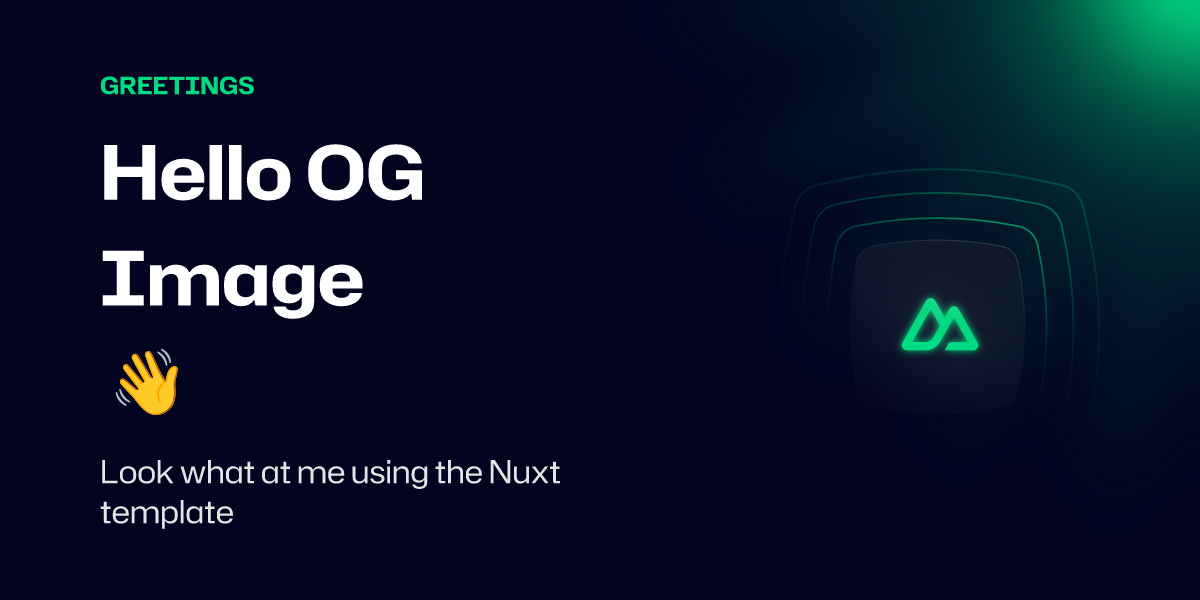
You can see all the supported props on the NuxtSeo Template documentation. It's also worth checking out the defineOgImage API.
Part 3: Creating Your Own Template
Using the community templates is a fun way to experiment with the OG Image template you want to use. However, they will always be limited in what you can do with them.
For production builds, you must eject any community template you're using. The easiest way is with the CLI:
npx nuxt-og-image eject SimpleBlogOr copy and paste the template manually from the Community tab in Nuxt DevTools or GitHub.
1. Create your template component
We're going to start with the SimpleBlog template as a quick way to get started.
Let's copy this template into our project at ./components/OgImage/BlogPost.takumi.vue and remove some of the boilerplate.
The module automatically registers any components you add to an OgImage folder as templates. The .takumi suffix tells the module which renderer to use - Takumi is the recommended renderer.
<script setup lang="ts">
const { title = 'title' } = defineProps<{
  title?: string
}>()
</script>

<template>
  <div class="h-full w-full flex items-start justify-start border-solid border-blue-500 border-[12px] bg-gray-50">
    <div class="flex items-start justify-start h-full">
      <div class="flex flex-col justify-between w-full h-full">
        <h1 class="text-[80px] p-20 font-black text-left">
          {{ title }}
        </h1>
        <p class="text-2xl pb-10 px-20 font-bold mb-0">
          mycoolsite.com
        </p>
      </div>
    </div>
  </div>
</template>
2. Use the new template
Now that you have your template, you can use it for your home page.
<script lang="ts" setup>
defineOgImage('BlogPost.takumi', {
  title: 'Is this thing on?'
})
</script>
Check your Nuxt DevTools to see the new template in action.
You may notice that the Tailwind classes work, even if you're not using the Tailwind module.
Tailwind v4, UnoCSS, CSS variables, and Nuxt UI v3 colors are all supported by default. You can learn more in the Styling guide.
:class="[`bg-${tone}`]", skips that step. The renderer then falls back to its own default Tailwind palette: bg-red-500 still renders, but a theme value such as bg-primary-500 or bg-brand renders nothing, with Tailwind or UnoCSS. The default palette version can also differ from your project's. Write theme classes statically, and use :style bindings for values that come from props.3. Customize your template
Now that you have your template, you can start customizing it.
Any props you pass to the defineOgImage composable will be available in the component.
With this in mind, let's add a new prop to change the border color: borderColor.
It's recommended to always provide default values for your props. This allows you to preview the template when you're not passing any props.
Since the module resolves theme classes at build time, we use a :style binding for the dynamic border color
instead of a dynamic class name.
<script setup lang="ts">
const { title = 'title', borderColor = '#3b82f6' } = defineProps<{
  title?: string
  borderColor?: string
}>()
</script>

<template>
  <div :style="{ borderColor }" class="h-full w-full flex items-start justify-start border-solid border-[12px] bg-gray-50">
    <div class="flex items-start justify-start h-full">
      <div class="flex flex-col justify-between w-full h-full">
        <h1 class="text-[80px] p-20 font-black text-left">
          {{ title }}
        </h1>
        <p class="text-2xl pb-10 px-20 font-bold mb-0">
          mycoolsite.com
        </p>
      </div>
    </div>
  </div>
</template>
Now let's customize the border to be a light green instead.
<script lang="ts" setup>
defineOgImage('BlogPost.takumi', {
  title: 'Is this thing on?',
  borderColor: '#86efac',
})
</script>
Within the playground, you should now see the border color change to green.
Conclusion
Thanks for following along. You now have a basic understanding of how to use the module.
It's recommended to look through the rest of the documentation to get a full understanding of what's possible.